



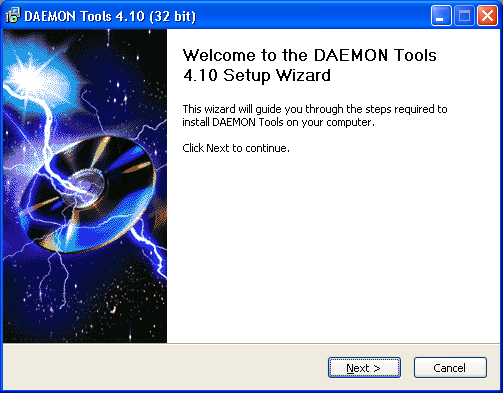
Many programs designed for a computer running a 32-bit version will work on a computer running the 64-bit version of the Windows Vista operating system without any changes. However, if a 32-bit program uses embedded drivers, there may be some cases there might be performance issues, or the drivers might not work in the 64-bit environment at all. When using a computer with the 64-bit version of the Windows Vista operating system it is best to use programs designed specifically for a 64-bit operating system.
Friday, August 1, 2008
Tuesday, July 29, 2008
New Series of Naruto Shippuden is here!

The hottest ninja anime is here. click this and look for movie anime link gallery.
Friday, July 18, 2008
Call Center Careers
Who wants to have a Job? Well I guess everyone wants it!
It’s a call center opportunity.
Position : Customer Service Representative
Technical Support Representative
Salary : P12,000 Probationary
P16,000 Regular
Here is the address.
Monday, July 14, 2008
Monday, July 7, 2008
How to Undo a Previous System Restore Operation?
 IMPORTANT:
a. This procedure must be performed while logged in as Administrator or to an account with Administrator rights.
b. The System Restore procedure will restore the Registry and other settings back to the date and time selected. No data will be lost. Saved documents and e-mail will not be affected by performing a System Restore.
c. Any hardware or software that has been installed after the date of the restore point will need to be reinstalled.
d. 200MB of free hard drive space is required to perform a system restore.
NOTES:
a. If the operating system will not start in Normal Mode, restart the computer in Safe Mode.
b. If the operating system will not start in Normal Mode or Safe Mode, restart the computer in Safe Mode using the Command Prompt. At the Command Prompt, type C:\Windows\System32\Restore\Rstrui.exe and then on the keyboard, press the ENTER key to start the System Restore.
c. If the mouse is not available, use the TAB key, or ARROW keys to make the selection.
1, Click the Start button, click All Programs, click Accessories, click System Tools, and then click System Restore.
NOTES:
a. If prompted for an administrator password or a User Account Control prompt is displayed, type the appropriate password or click Continue.
b. If System Restore is not listed in the System Tools menu, click the Start button and type System Restore in the Start Search box.
2. In the System Restore window, click to select Choose a different restore point, and then click the Next button.
3. In the Choose a restore point window, click to select the restore point with the description Undo: Restore Operation, and then click the Next button.
4. In the Confirm your restore point window, click the Finish button.
NOTE: The operating system will undo the selected restore operation and the computer will restart.
Wednesday, July 2, 2008
How to Reset the EDGE Module?

A +CME ERROR 3 error will occur when the EDGE Module attempts to process a passworded command 10 or more times unsuccessfully. To bypass the error, the EDGE Module must be reset using the following procedure.
NOTE: If a Hyperterminal window is already open from attempting to unlock the EDGE module, begin with Step 10.
1. Click the Start button, point to All Programs, point to Accessories, point to Communications, then click HyperTerminal.
2. In the Connection Description window, under Name, type EDGE.
3. Click the OK button.
4. In the Connect To window, next to Connect using, click the down arrow and click to select COM4.
NOTE: If COM4 (or the port that the Sony Ericsson EDGE Module uses) is not available in the list, ensure the Sony Ericsson EDGE Module is installed properly.
5. Click the OK button.
6. In the COM4 Properties window, ensure all the following settings are configured properly:
Bits per second = 2400
Data bits = 8
Parity = None
Stop bits = 1
7. Click the OK button.
8. In the HyperTerminal window, type AT
IMPORTANT: Use capital letters for all entries.
9. Press the ENTER key.
NOTE: Ensure OK is displayed on the next line after AT.
10. Type AT+CMAR=0000
11. Press the ENTER key.
NOTE: If OK is displayed, the EDGE module was reset correctly.
NOTE: If a Hyperterminal window is already open from attempting to unlock the EDGE module, begin with Step 10.
1. Click the Start button, point to All Programs, point to Accessories, point to Communications, then click HyperTerminal.
2. In the Connection Description window, under Name, type EDGE.
3. Click the OK button.
4. In the Connect To window, next to Connect using, click the down arrow and click to select COM4.
NOTE: If COM4 (or the port that the Sony Ericsson EDGE Module uses) is not available in the list, ensure the Sony Ericsson EDGE Module is installed properly.
5. Click the OK button.
6. In the COM4 Properties window, ensure all the following settings are configured properly:
Bits per second = 2400
Data bits = 8
Parity = None
Stop bits = 1
7. Click the OK button.
8. In the HyperTerminal window, type AT
IMPORTANT: Use capital letters for all entries.
9. Press the ENTER key.
NOTE: Ensure OK is displayed on the next line after AT.
10. Type AT+CMAR=0000
11. Press the ENTER key.
NOTE: If OK is displayed, the EDGE module was reset correctly.
Tuesday, June 24, 2008
What is Dneero.com?

Have you ever heard about Dneero before? Well Dneero is somewhat we call opinion based survey and if you are going to participate on it, itr will give you a good money. It's easy and fun and the great deal about this is there is no catch waiting for you. Try it!
Friday, June 20, 2008
DAPC Manila

I am currently having training for Parts and Accessory Department of Sony (DAPC) because i was transferred there and the account is currently ramping up.
Wednesday, June 18, 2008
Contents of the Memory Stick media are Corrupted

Contents of the Memory Stick media are corrupted after connecting to a computer using something other than a Microsoft Windows operating system.
Devices that use Memory Stick media utilize the FAT12 file system to read and write information to the media. When connecting devices to a computer via a USB connection, the operating system of the computer must be capable of writing in the FAT12 format or the information on the media may become corrupted.
Monday, June 16, 2008
InstallShield displays Error extracting support files
The InstallShield is third-party software frequently used to assist in the installation of Microsoft Windows programs. InstallShield errors may occur when installing a newer program with an older version of the InstallShield software on the computer, or a variety of other issues. Refer to the support section of the InstallShield Web site at http://www.installshield.com/ for further assistance.
Sunday, June 15, 2008
The installation cannot continue because the camera is not detected when installing the Picture Motion Browser software.

Follow the steps below to troubleshoot this issue.
IMPORTANT:
Some software or hardware installations and changes require the user to be logged on as Administrator or with administrator rights when running on Microsoft Windows XP , Windows Vista or Windows 2000 Professional operating systems.
The Picture Motion Browser software may need to updated to the latest version. Information about the latest software and driver updates can be found at the Sony Support Web Site at http://esupport.sony.com.
1. Check that the USB cable is properly plugged into the terminal of the camera and the computer.
NOTE: For models that connect via the USB cradle (or Cyber-shot Station), check the connection of the USB cradle as well.
2. Disconnect any other USB devices (except for a mouse and keyboard) from the computer; other USB devices may cause the camera to not be recognized properly.
3. If your computer has multiple USB ports, try connecting to another USB port.
NOTES: Some computers have different USB controllers for each port. In this case, connecting to a different port may solve the problem.
Connect the USB cable directly to a USB port on the computer. Using a USB hub connection may cause the camera to not be recognized properly by the computer.
4. Ensure the recording media is inserted in the camera, otherwise the camera will not be recognized properly by the computer.
5. Check that camera is set properly in the menu use the USB connection.
NOTE: Some cameras must have the USB Connect option in the menu set to Normal or Mass Storage. For model-specific information, consult the instruction manual. Manuals are available online in the Manuals/Specs/Warranty section of the Sony® eSupport Web site.
6. Turn the camera off and then back on again; the computer cannot recognize the connection unless the camera is on.
7. Check if the operating system of your computer has been upgraded; operations are not guaranteed in an upgraded environment.
8. If the issue is not resolved, try installing the USB driver again following the steps below:
A. With the camera powered on and connected to the computer,
For Windows 98, 98SE and Me: Right-click My Computer, click Properties, and then click the Device Manager tab.
For Windows 2000 and XP: Right-click My Computer, and then click Properties. Click the Hardware tab, and then click Device Manager.
For Windows Vista: Click the Start button and click Control Panel. In the Control Panel window, click System and Maintenance. In the System and Maintenance window, click Device Manager.
NOTE: If prompted for an administrator password or a User Account Control prompt is displayed, type the appropriate password or click Continue.
B. If Sony DSC with a question mark is listed under Other devices, right-click Sony DSC to display the menu.
C. Click Uninstall or Remove in the menu to delete the device.
D. When the Confirm Device Removal message appears, click OK.
E. Disconnect the camera from the USB port and restart the computer.
IMPORTANT:
Some software or hardware installations and changes require the user to be logged on as Administrator or with administrator rights when running on Microsoft Windows XP , Windows Vista or Windows 2000 Professional operating systems.
The Picture Motion Browser software may need to updated to the latest version. Information about the latest software and driver updates can be found at the Sony Support Web Site at http://esupport.sony.com.
1. Check that the USB cable is properly plugged into the terminal of the camera and the computer.
NOTE: For models that connect via the USB cradle (or Cyber-shot Station), check the connection of the USB cradle as well.
2. Disconnect any other USB devices (except for a mouse and keyboard) from the computer; other USB devices may cause the camera to not be recognized properly.
3. If your computer has multiple USB ports, try connecting to another USB port.
NOTES: Some computers have different USB controllers for each port. In this case, connecting to a different port may solve the problem.
Connect the USB cable directly to a USB port on the computer. Using a USB hub connection may cause the camera to not be recognized properly by the computer.
4. Ensure the recording media is inserted in the camera, otherwise the camera will not be recognized properly by the computer.
5. Check that camera is set properly in the menu use the USB connection.
NOTE: Some cameras must have the USB Connect option in the menu set to Normal or Mass Storage. For model-specific information, consult the instruction manual. Manuals are available online in the Manuals/Specs/Warranty section of the Sony® eSupport Web site.
6. Turn the camera off and then back on again; the computer cannot recognize the connection unless the camera is on.
7. Check if the operating system of your computer has been upgraded; operations are not guaranteed in an upgraded environment.
8. If the issue is not resolved, try installing the USB driver again following the steps below:
A. With the camera powered on and connected to the computer,
For Windows 98, 98SE and Me: Right-click My Computer, click Properties, and then click the Device Manager tab.
For Windows 2000 and XP: Right-click My Computer, and then click Properties. Click the Hardware tab, and then click Device Manager.
For Windows Vista: Click the Start button and click Control Panel. In the Control Panel window, click System and Maintenance. In the System and Maintenance window, click Device Manager.
NOTE: If prompted for an administrator password or a User Account Control prompt is displayed, type the appropriate password or click Continue.
B. If Sony DSC with a question mark is listed under Other devices, right-click Sony DSC to display the menu.
C. Click Uninstall or Remove in the menu to delete the device.
D. When the Confirm Device Removal message appears, click OK.
E. Disconnect the camera from the USB port and restart the computer.
F.Install the Picture Motion Browser software and reconnect the camera.
Friday, June 6, 2008
The Actor Rudy Fernandez Died

Rudy Fernandez is one of my favorite action star in Philippine history died. The actor Rudy Fernandez died early Saturday morning after battling peri-ampullary cancer for more than a year, actor-Senator Ramon Revilla Jr announced Saturday at the age of 55. Radio station dzMM Fernandez's remains were immediately brought to the Heritage Park in Taguig.
He said the public can pay their respects at the park. Continue reading...
He said the public can pay their respects at the park. Continue reading...
Thursday, June 5, 2008
Deo Gracia's Resort in Antipolo City


If you are looking for a fantastic place where you can stay for a vacation trip or burn out trip, you can definitely go to Deo Gracias Resort that is located in Antipolo. The place is really amazing.
 The views are great and you can even see the views of Laguna and Batangas in the over looking spot of the resort. Also the landscape of the resort is well defined! So what are you waiting for visit it now!
The views are great and you can even see the views of Laguna and Batangas in the over looking spot of the resort. Also the landscape of the resort is well defined! So what are you waiting for visit it now!Private Rooms included and it has three (3) different pools. Kiddy pool is also entertained
Subscribe to:
Posts (Atom)


 Posts
Posts


